
# Role Management
To manage and maintain a device by multiple people, you can add different user roles to the same device and enable the corresponding permissions for each role. This section describes the basic operations such as adding, deleting, modifying, and copying user roles, so that you can quickly master the skills of managing users.
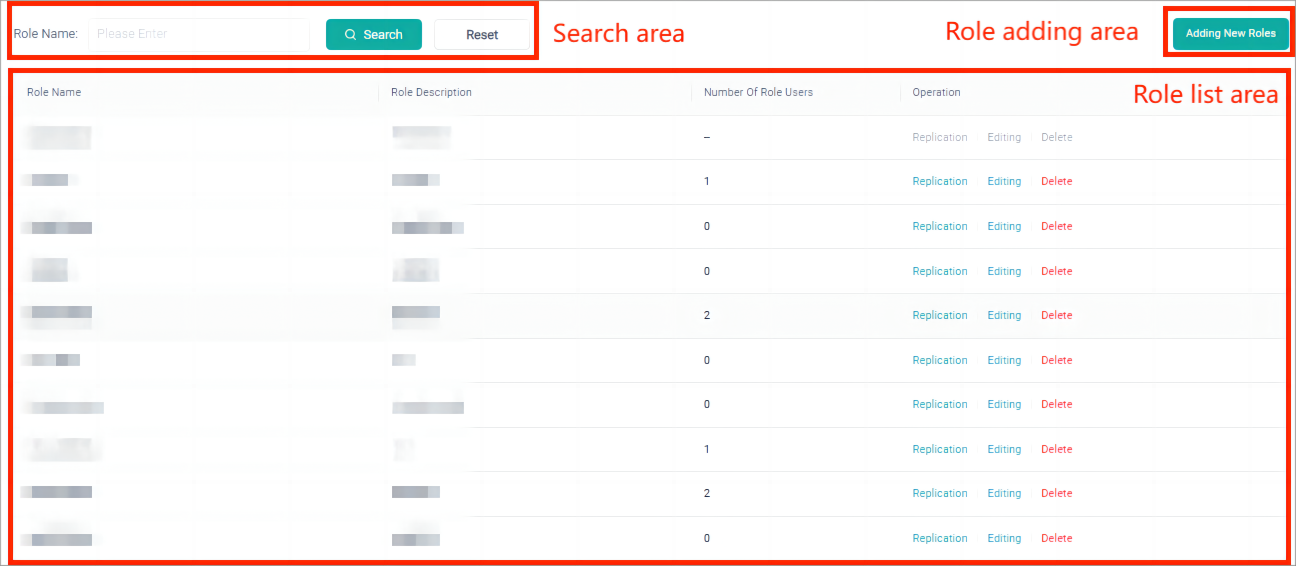
According to the function, the role management page is divided into: search area, role list area, and role adding area.
# Search Area
In the search area, users can search for information based on the created user role name or keyword.
- Search button: In the search box, enter the name or keyword of the created role to search for an existing user role.
- Reset button: Clear the content of the current search box.
# Role List Area
In the user role list area, you can view all user roles and copy, edit, and delete a user role.
- Role name: You can customize the role name.
- Role description: Definition of the responsibilities of the current user role and others.
- Number of Role users: The number of users in the current role.
- Replication: Copy all permissions of the current user role to create a new role. The name of a new user role cannot be the same as that of an existing user role.
- Editing: Edit and modify the name, description, and permissions of the current user role.
- Delete: Deletes the current user role. The user can be deleted only when the number of users in the user role is 0.
# Role Adding Area
To add a new user role, enter a user role name, such as administrator, inspector, or O&M personnel. The name of the new user role cannot be the same as the name of the existing user role. Add the corresponding description of the responsibilities of the role. Set the user's menu and operation permissions, and click Save.
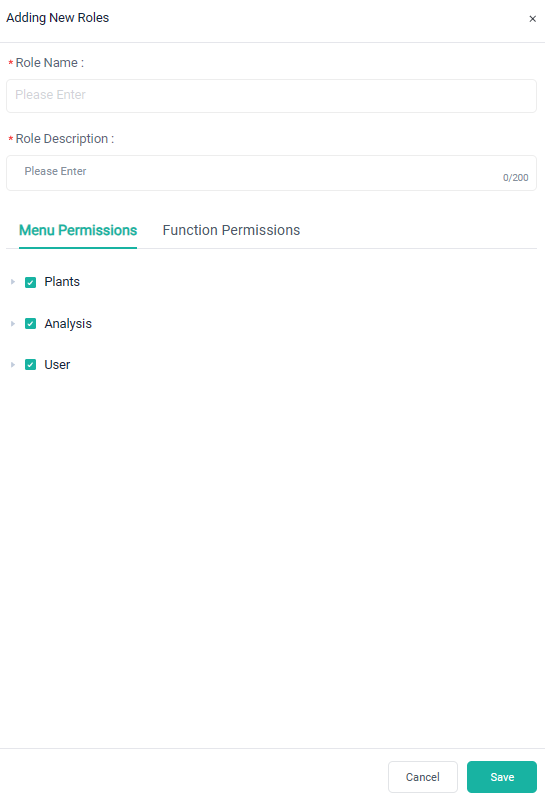
[!Note] After creating a user role, you can add one or multiple users to the role. For specific details, see: User Adding Area。