
# Subuser Management
This section provides information about searching for, adding, and editing sub-users.
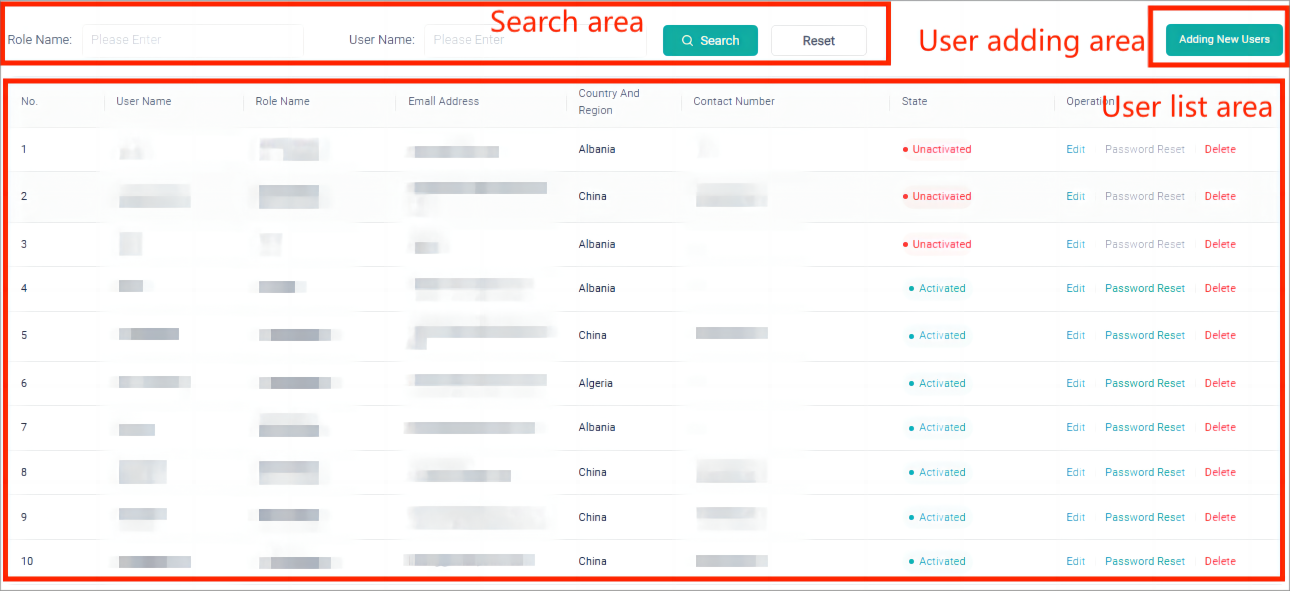
According to the function, the subuser management page is divided into: Search area, user list area, and user adding area. The basic functions and operations in each area are described below.
# Search Area
In the search area, users can search for information based on the created role name, user name, or keyword.
Search button: In the search box, enter the name of the created role, user name, or keyword, and click this button to find an existing user.
Reset button: Clear the content of the current search box.
# User List Area
In the user list area, you can view the status of all users, edit a sub-user, enable a sub-user to reset the password, and delete a sub-user.
State
User accounts can be divided into activated or inactive. Newly added users are inactive until they log in to the platform. To activate an account, you will need to enter your email verification code when you log in to the SolaXCloud for the first time. After successful activation, the system will automatically log in to the platform homepage.
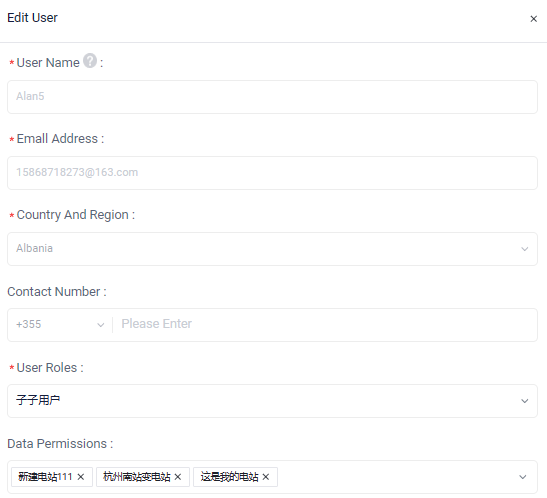
Edit You can modify the role and data permissions of sub-users under the current account.
Password Reset
After a sub-user account is successfully activated, the parent account can enable the sub-user to reset the password. Here's how:
In the user list, find the created sub-user and click Password Reset. In this case, the system will prompt that the reset is successful.
Remind the sub-user to reset the password and inform the user that the login password is 123456.
After the sub-user enters the username and password to log in to SolaXCloud, he/she will directly go to the password resetting page.
On the password reset page, enter and confirm the new password, and click Save to complete password resetting.
Delete
You can directly click the Delete button to delete the created sub-user.
# User Adding Area
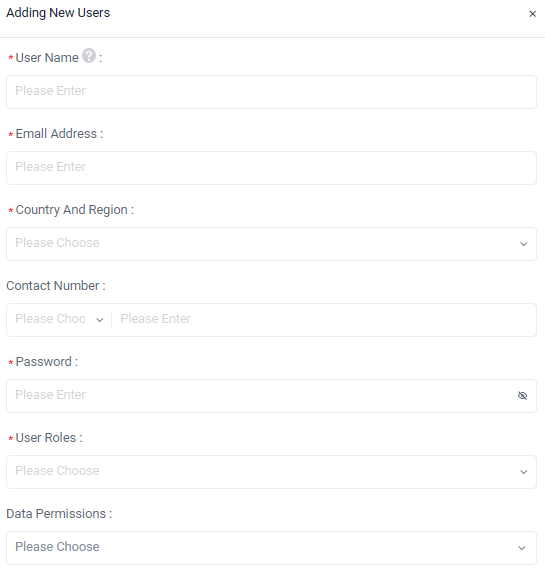
Enter the user name, e-mail address, country & region, contact information, password, select the user role, select the data permission, and click Save.