

# Plant List
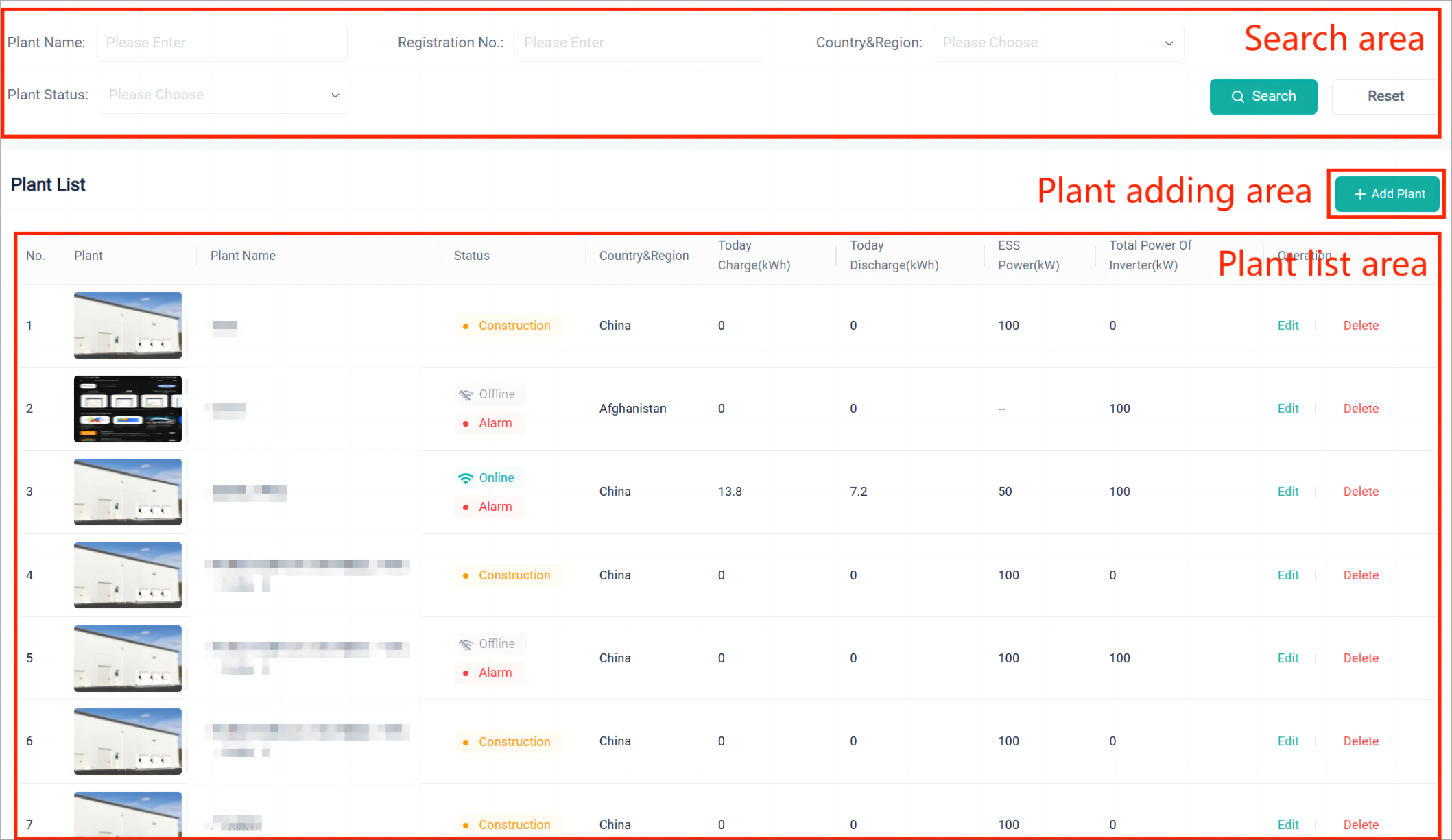
On the left navigation bar, select Monitoring>Plant List. The plant list page displays all plants under the current account. According to the function, this page is divided into: search area, plant list area, and plant adding area.
# Search Area
In the search area, a user can search for a certain plant by entering the name or registration number of the plant, or selecting the country & region or the plant status.
Registration number: EMS registration number only.
Power station status: Offline, online, and connecting.
- Online: At least one device of the plant(s) is connected to the SolaXCloud.
- Offline: All devices of the plant(s) disconnect from the SolaXCloud.
- Connecting: A virtual plant has been created, but no physical device has been bound with it yet.
Search button: Enter the keyword and click this button to search for related plants.
Reset button: Click it to clear the search conditions.
# Plant List Area
In the plant list area, a user can view all plants and edit and delete a plant.
Delete: Click it to delete the current plant. If there is a device bound to the plant, the plant cannot be deleted.
Edit: Edit or modify the basic information, plant information, and data permissions.
- Basic information: Includes the plant name, country & region, plant address, and plant picture.
- Plant information: Includes the plant type, system type, and installed power.
- Data permissions: Whether to allow installers/agents to view plant data.
Plant name: Click the name of a plant to view detailed information about the plant, including Data Overview, System Overview, Alarm Information, Management, and Plant Information. For more details about a single plant, please see Single-plant Details。
# Plant Adding Area
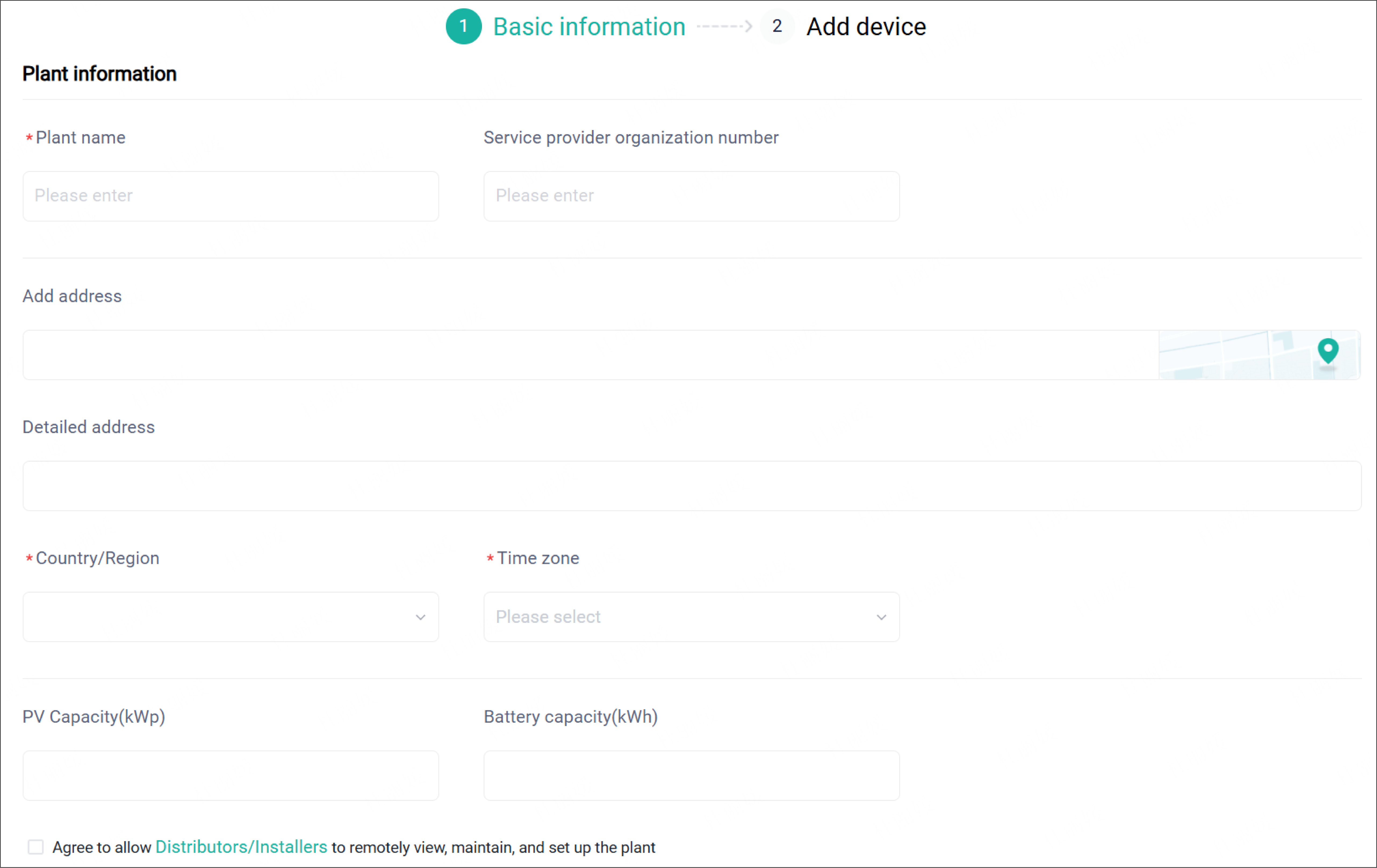
Click the +Add Plant button, and then fill in the basic plant information and determine whether to authorize the plant maintenance right to an installer or agent.
[!NOTE]
- When filling in the basic information, please provide an accurate address, so that the installer can provide maintenance services later.
- Service provider refers to installer or distributor. After providing the number of service provider and authorizing the maintenance right to it, the service provider will receive an authorization notification. Once accepting the authorization, it can maintain your plant remotely.
← Overview Alarm List →