

# Layout of Homepage
This section describes the overall layout of pages in the SolaXCloud.
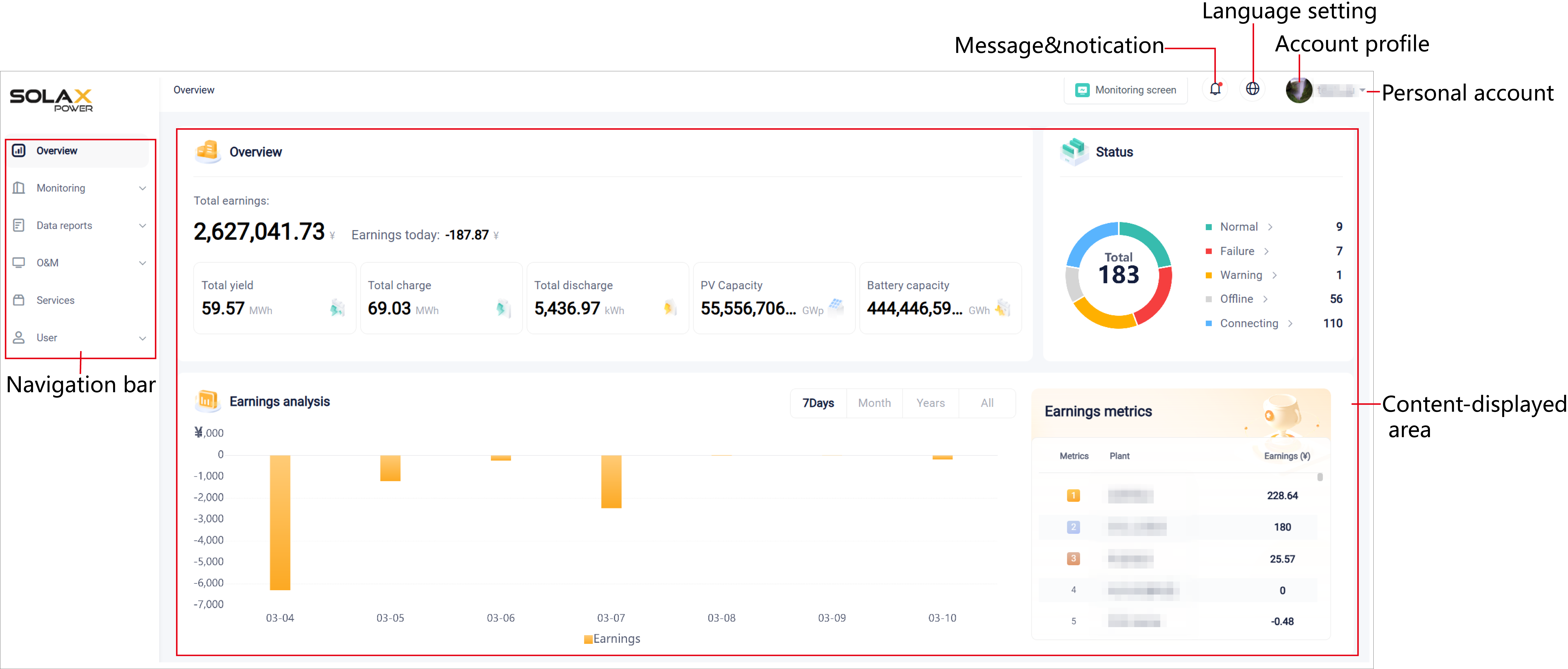
Navigation bar: You can switch among different modules through it.
Content-displayed area: Display the content corresponding to the module you selected.
Monitoring screen: Click it to enter the SolaX Power Management Platform.
Message: Click to view all messages and notifications from the platform.
Language setting: Set the language as required.
Personal account: When putting the cursor of the mouse below the account name, a drop-down menu will appear: Account information, Personality setting, Security certification, Alarm notification settings, Switch identity, and Log out.
Account information: You can view the basic information about the account, and modify your profile picture, user name, password, e-mail address, country & region, phone, and address.
Personality setting: You can set the unit of temperature and currency. Please set it accurately according to the actual situations, so that the platform can make more accurate statistics on temperature and electricity bills.
Alarm notification settings: You can set which level of warning needs to be informed of, the upper limit of notifications, and accounts that receives the notifications.
Switch identity: If you take multiple roles, for example not only C&I user but home user, you can complete switchover just with one click.